 LoreRoad
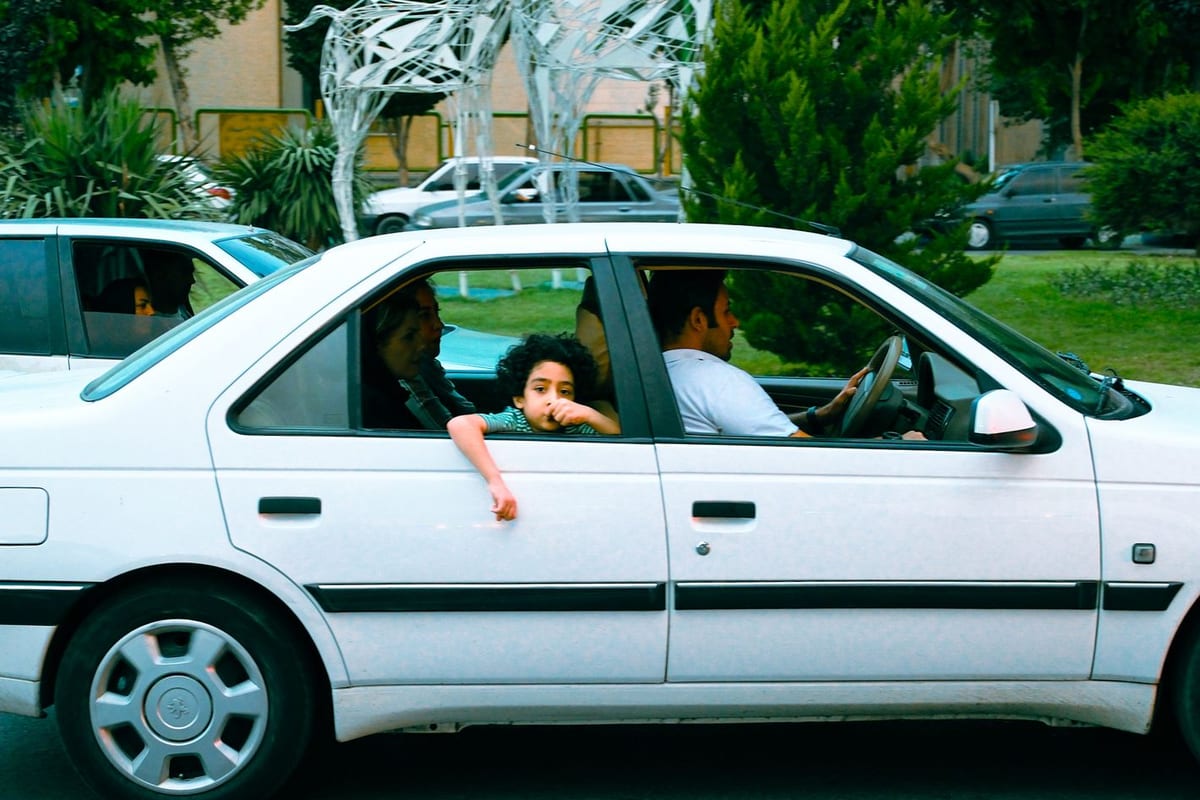 Photo by Ilhan Baloglu · CC Pexels License undefined
How to use a GPS audio tour app while driving safely
Set up autoplay, choose Bluetooth or speaker, and keep the driver hands‑free—with research‑backed tips for safer listening on the move.
You want the stories to play, not to fight your phone
You’re parked, about to roll, and you want the tour to just talk as the scenery changes—no tapping, no hunting for the next stop. Here’s a practical setup that makes a GPS audio tour run itself and keeps the driver out of the app.
How automatic GPS playback actually works
Most GPS audio tours aren’t magic; they use geofences and/or a set sequence of trigger points. Publishers define a fixed starting point and place audio clips at locations. As your phone crosses each trigger, the next clip fires. VoiceMap explains this clearly: their tours have a fixed start, and “GPS autoplay” plays clips in sequence as you move through the route VoiceMap Support.
What that means for you: start where the tour tells you to start, and let the triggers do the work. If you begin in the middle, many tours won’t know where you are in the sequence.
Set it up before you shift into Drive
Do these steps while parked so playback runs itself:
- Open the tour and confirm where it starts. If the tour requires a fixed starting point, go there and start it from that spot so sequence triggers line up VoiceMap Support.
- Grant the app “Always” (background) location permission. Without background location, many apps won’t trigger when the screen is off or another app is frontmost VoiceMap Support.
- Enable any “autoplay,” “GPS autoplay,” or background play setting in the app. Some publishers expose this as a toggle; others bake it into the tour config VoiceMap Support.
- Choose your audio path and test it. Pair to the car’s Bluetooth or plan to use a mounted phone speaker. Play a short clip while parked and confirm it comes through the speakers you expect. Testing now avoids fumbling later. Using the car’s audio usually improves clarity at speed and reduces the urge to handle the phone, aligning with general distracted‑driving guidance to limit manual and visual interactions NHTSA.
- Turn on your phone’s driving mode/Do Not Disturb While Driving. Allow navigation and your tour app to play, and silence everything else. This trims alerts and temptation, which is the point NHTSA.
- Mount the phone where it has a clear view of the sky. Don’t bury it in a bag, pocket, or cupholder. Obstructed GPS can cause late or missed triggers VoiceMap Support.
- Lock the screen and leave it. Your ears do the work; your eyes stay on the road.
If you’re using LoreRoad, it reads location‑aware stories out loud so the driver can keep their eyes up. You can skim how the location‑triggered facts work here: Facts.
Should the driver or a passenger control the app?
Short answer: a passenger. Research on distraction is blunt: even voice‑based systems create measurable mental workload that can impair some aspects of driving performance. The AAA Foundation’s cognitive distraction program shows that hands‑free or voice tasks reduce visual‑manual demand but still tax attention AAA Foundation.
Best practice:
- Assign a passenger as “tour captain” to start/pause, skip a segment, or fix anything odd.
- If you’re solo, pre‑configure everything before moving, rely on autoplay, and resist mid‑drive tweaks. If your app supports voice Q&A, use it sparingly and only when traffic is light.
If your crew wants something to do while you listen, give them the entertainment controls instead of the driver. For example, passengers can run car games from here: Games.
Bluetooth or phone speaker?
Use whatever keeps your hands off the phone and your attention out the window. In practice:
- Bluetooth to the car stereo is usually the cleanest option. It plays narration through the cabin at a steady volume that competes with wind and road noise, and it cuts down on handling the device. That aligns with safety guidance to avoid manual/visual phone tasks while driving NHTSA.
- If Bluetooth is flaky, a firm dash mount plus the phone’s speaker is a fine fallback. Pre‑set volume while parked so you’re not fishing for buttons at 60 mph.
Either way, run a 10‑second audio test, then leave it alone.
Does audio actually reduce distraction vs reading on a phone?
Yes, for the specific risks of eyes and hands. Audio shifts the workload from visual‑manual to auditory, which lowers the need to look down or tap. Lab and simulator studies find audio‑only listening yields less visual‑manual demand than reading or touchscreen tasks, though it still creates mental workload that can affect hazard detection PubMed. The AAA Foundation echoes this: hands‑free cuts visual and manual effort, but the brain is still busy AAA Foundation.
Why be careful at all? Because phone use behind the wheel is still common and still deadly. NHTSA estimates about 7.6% of drivers are using some type of phone in a typical daylight moment, and reports 3,522 fatalities in distraction‑affected crashes in 2021 NHTSA. Audio tours are a safer modality than reading on a screen, but they’re not a blank check to multitask.
Common gotchas that break autoplay (and the quick fix)
These are boring problems that create exciting problems. Avoid them:
- Starting from the wrong spot. Many tours require a fixed start. Begin at the marked point so the sequence lines up VoiceMap Support.
- No background location. If the app only has foreground permission, triggers may fail when the screen sleeps or you switch apps. Set permission to “Always” VoiceMap Support.
- Bluetooth paired, but audio still on the phone. Some cars default to the phone speaker until you play something and pick the output. Do a parked test and confirm routing NHTSA.
- Phone stuffed in a pocket or bag. GPS degrades, triggers go late. Mount the phone with a clear sky view VoiceMap Support.
- Mid‑drive tinkering. Even “quick” taps add risk. Let autoplay run and assign a passenger to handle controls AAA Foundation.
A quick, checkable in‑car checklist
Print this or save it to Notes. Verify each item before you roll:
- Tour opened, start point confirmed, first clip plays while parked VoiceMap Support.
- Location permission = Always/Allow all the time VoiceMap Support.
- Autoplay/GPS autoplay toggled on (if available) VoiceMap Support.
- Audio path tested: Bluetooth to car or phone speaker, volume set NHTSA.
- Driving mode enabled; other notifications silenced NHTSA.
- Phone mounted with clear GPS view VoiceMap Support.
- Passenger assigned to be “tour captain,” or solo plan set (hands‑free only, no mid‑drive changes) AAA Foundation.
Troubleshooting late or missed triggers without taking your eyes off the road
If a clip seems late or silent, don’t start tapping. Use these driver‑safe checks:
- Wait a beat. GPS can drift in canyons, tunnels, and dense cities; the next trigger often fires as you clear obstructions VoiceMap Support.
- Ask your passenger to confirm output. Is audio going to the car or the phone? A quick output switch by your tour captain often fixes “silence” NHTSA.
- If you began off the official start, your sequence may be out of sync. Have the passenger navigate you to the tour’s start point and relaunch there VoiceMap Support.
Hands‑free tips that actually stay hands‑free
- Let the narration do its job. Resist looking at the map unless you’re stopped.
- If your app has a voice guide, use short commands and keep them rare. LoreRoad includes an AI co‑pilot with a real, human voice you can ask by voice or tap; if you’re curious, meet it here: Lore.
- Build your routine: parked test, start point, driving mode, volume, mount, then go. Routines beat willpower.
Why this setup works in real traffic
This approach front‑loads the fiddly bits, leans on GPS triggers that are designed to run without you, and assigns any mid‑drive decisions to someone who isn’t steering. It aligns with what the research keeps saying: cut visual‑manual tasks, keep mental load modest, and you improve your odds AAA Foundation NHTSA PubMed.
Ready to try it? While parked, open your tour, confirm the start point, and run a 10‑second audio test over your chosen speakers.
Common questions
How do I make a GPS audio tour play automatically while I drive?
Start the tour at its fixed start point, enable any in‑app autoplay setting, and grant the app background (“Always”) location permission so triggers fire even with the screen off. Test a short clip while parked to confirm audio routing [VoiceMap Support].
Should the driver or a passenger control the app?
Choose a passenger as the “tour captain.” Research shows even hands‑free tasks add mental load for drivers, so the safest move is to keep the driver out of the app while moving [AAA Foundation].
Is listening to an audio tour safer than reading on my phone?
Audio removes the visual‑manual demands of reading or tapping, which lowers distraction risk. It still adds some mental workload, so keep interactions minimal and eyes up [PubMed] [AAA Foundation].
What’s better for sound: Bluetooth or the phone speaker?
Bluetooth to the car stereo is usually clearer and reduces handling the phone. If it’s unreliable, use a firm mount and the phone speaker—but set volume before you drive [NHTSA].
LoreRoad tells you the history behind every mile — surfaced as you reach it and read aloud, so the driver never looks down.
Get the app